
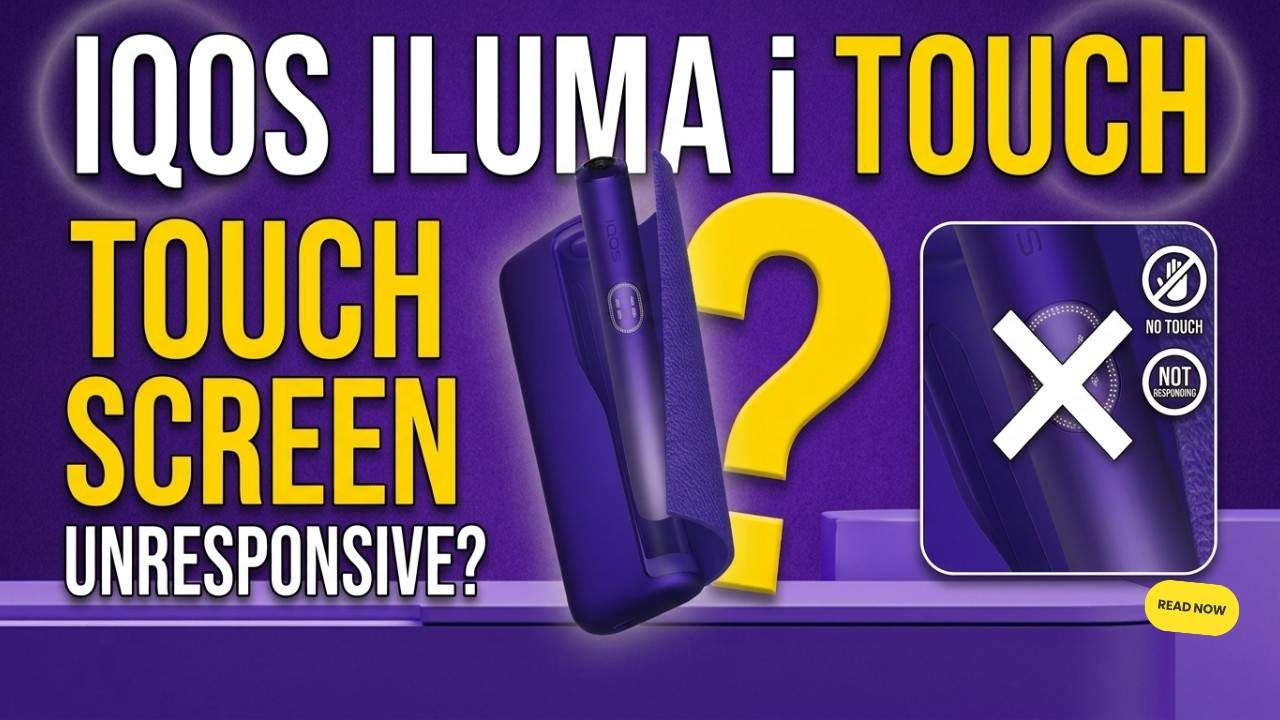
Switching from an older button-operated heated tobacco device to the modern IQOS ILUMA new series brings a lot of excitement, but it also comes with a small learning curve. If you recently picked up the flagship smart device in Dubai, you might find yourself staring at a touch panel that completely refuses to respond to your fingers. It feels completely dead, leaving you unable to start your session.
Before you start worrying about a broken device, let us clear up a massive misconception that floods local community forums: the IQOS ILUMA i does not have a manual lock mode. There is no hidden button combination or app setting that permanently locks the screen. When the touch surface feels unresponsive, it means the software is either intentionally filtering out your touch or experiencing a temporary environmental calibration glitch.
This step-by-step troubleshooting guide provides direct answers to get your device working again. We cover the entire smart lineup available in the UAE market, including:
- IQOS ILUMA i Standard
- IQOS ILUMA i prime
- IQOS ILUMA i one
How the IQOS ILUMA i Interface Actually Works
To fix an unresponsive touch screen, you need to understand how the capacitive glass surface works. Unlike older IQOS ILUMA models that rely on physical buttons or automatic stick insertion sensors alone, the advanced IQOS ILUMA i uses capacitive gesture recognition. This is the exact same technology used on your smartphone screen.
The sleek glass panel measures the tiny electrical adjustments caused by the moisture and natural oils in your skin. The system is intentionally programmed to ignore static taps, partial or hesitant swipes, and slow finger movements.
Why did the designers build it this way? It is a safety feature to prevent accidental pocket activation. If the glass responded to every light rub, the device would turn on inside your pocket or bag, burning through your IQOS terea sticks and draining your battery. The screen requires a highly specific, intentional movement to activate.
First Diagnosis: Is the Screen Unpowered or Software-Frozen?
Before applying a fix, look closely at the glass panel to diagnose what is happening underneath the surface:
- A Completely Blank Screen: If no icons or dashes light up when you insert a stick, your battery is completely dead, the device has entered a deep “Eco” battery-saving state, or the internal components have lost power.
- Static Dashes or Fixed Icons: If you see steady light indicators on the panel but waving or swiping your finger does absolutely nothing, the device is experiencing a temporary firmware freeze.
- Triple Flashing Lights: If the screen flashes a warning light three times, the system is actively notifying you of an operational error, such as a temperature spike or an interrupted heating cycle.
Does an unresponsive screen mean your device is permanently broken? No.
In more than 95% of cases, the glass panel is physically perfect, and the underlying software just needs a quick reset or a change in your finger technique.
Mastering the Swipe Velocity (The 0.5-Second Rule)
The most common reason a brand-new touch screen feels broken is an incorrect swiping technique. If you try to tap the glass or slide your finger slowly, the safety algorithm marks it as an accidental touch and ignores it completely.
To unlock the heating system, you must follow the 0.5-Second Rule. Place your finger firmly at the very top of the touch panel and swipe all the way down to the bottom in one smooth, uninterrupted motion taking less than half a second.
Think of it as a quick, firm swipe rather than a lazy slide. Your finger must maintain constant contact with the glass from the top edge to the bottom border. This rapid speed tells the processor that a human is intentionally starting a session, instantly waking up the induction heating system.
Fix #1: Perform the 10-Second Hard Reset
If your swiping technique is correct but the screen remains completely frozen with static lights, you need to force a hard reset. This reboots the microchip and restores the factory touch sensitivity settings.
For the IQOS ILUMA i Standard and IQOS ILUMA i Prime, make sure the holder is seated correctly inside the pocket charger. Next, press and hold down the main physical button on the pocket charger body for exactly 10 seconds. Watch the indicator lights as they slowly fade out completely. Keep holding the button until the lights blink white twice and a soft haptic vibration shakes the charger. This sequence confirms the system has successfully rebooted and synchronized its hardware tracking.
For the all-in-one IQOS ILUMA i One, the process is slightly different. First, pull any inserted tobacco stick out of the top heating chamber. Then, press and hold the single physical button on the spine of the device for 10 seconds. The light strip will shut down completely and pulse twice to signal a complete software refresh. This reset cycle clears background cache errors and re-initializes the glass response grid from scratch.
Fix #2: Remove the UAE “AC Moisture Film”
Living in the UAE exposes your electronics to severe climate shifts. Moving from 43°C outdoor summer humidity directly into an office, mall, or hotel room cooled to 18°C creates an instant environmental issue called AC Moisture Film.
The rapid temperature drop causes a microscopic layer of water condensation to form instantly across the cold glass panel of your holder. Because water conducts electricity, this thin condensation film scrambles the capacitive sensor grid. The device sees a massive, confusing electrical print across the entire screen, making it impossible to detect your finger movement.
The Fix: Take a dry microfiber cloth, a cotton shirt, or a clean tissue and firmly wipe the glass panel until it is completely bone-dry. After wiping, let the device sit for 10 to 15 seconds to let any residual moisture evaporate before attempting the 0.5-second fast swipe again.
Fix #3: Clean the Touch Surface Correctly
Your fingers naturally carry skin oils, but in daily life, we also accumulate layers of hand lotions, heavy sunscreens, and fine desert dust. This residue builds up a thick, invisible barrier over the glass panel.
This greasy buildup prevents your skin’s natural electrical current from reaching the capacitive sensors below the glass.
How to Clean the Screen:
- Use a slightly damp cloth or a specialized electronics cleaning wipe.
- Gently rub the glass panel in circular motions to break down oils and sunscreen smudges.
- Dry the surface thoroughly with a clean tissue.
- What to Avoid: Never use harsh window cleaners, acetone, or rubbing alcohol directly on the screen. These chemicals strip away the oleophobic coating that makes the glass smooth to swipe. Do not scrape the glass edges with pocket knives, keys, or metal pins, as this will permanently crack the touch sensor seals.
Fix #4: Temperature Shock & Battery Stability
Extreme temperatures can destabilize the lithium-ion batteries that power the smart touch panels. When a device is exposed to extreme cold or intense heat, its battery voltage drops slightly for a few minutes.
If your device has been resting directly in front of an icy office AC vent, the cold temperatures temporarily slow down the sensor response times.
The Fix: If your holder feels freezing to the touch, roll it briskly between your palms for 15 to 20 seconds before swiping. Bringing the internal battery back up to normal body temperature stabilizes the voltage, allowing the touch screen to register your finger movements perfectly.
Fix #5: Pause Mode Confusion (ILUMA i & i Prime Only)
A very frequent source of confusion comes from the new Pause Mode feature exclusive to the premium IQOS ILUMA i and Prime editions.
When you swipe downward on the touch screen during the first 3 minutes of a session, the system temporarily pauses the heating cycle. During this active pause state, the screen intentionally locks all standard gesture inputs to protect your current tobacco stick. Because of this built-in protection rule, trying to swipe downward a second time or tapping randomly on the panel does absolutely nothing. Many users panic during this window and assume their screen has suddenly frozen or broken.
To resume your paused session properly, you must execute a quick upward swipe from the bottom of the glass panel all the way to the top. If you leave the device paused and do not swipe up within 8 minutes, the system will automatically terminate the session, clear the lights, and reset the screen to a normal blank state. Note that this feature does not apply to the all-in-one IQOS ILUMA i one, which uses a non-touch indicator panel.
What Not to Do When the Screen Doesn’t Respond
When your touch panel stops responding, avoid these four common mistakes that can turn a simple software glitch into a costly hardware replacement:
- Do not press hard on the glass: Capacitive screens respond to electrical proximity, not physical pressure. Pressing down hard with your thumb will only risk cracking the internal LCD matrix.
- Do not tap repeatedly: Rapidly tapping the glass confuses the processor, extending the time it takes for the safety algorithm to reset.
- Do not attempt unauthorized firmware hacks: Avoid connecting your device to unofficial desktop software tools promising to override the screen.
- Do not use low-grade third-party cables: Charging your device with cheap car chargers or broken cables can cause electrical noise, causing the touch screen to glitch during or immediately after a charging cycle.
When It’s a Genuine Hardware Issue
While rare, there are times when an unresponsive screen points to a real mechanical failure. Because these devices are built as fully sealed units, internal failures are uncommon unless the device has suffered major physical damage.
You are likely looking at a permanent hardware issue if you see deep cracks spiderwebbing across the glass surface after a hard drop onto concrete. Similarly, if the device is dropped into water or a pool, liquid can bypass the outer seals and short-circuit the capacitive grid. In these situations, a hard reset will not fix the issue, and replacing the unit is your only option.
Quick Troubleshooting Checklist
If you are out in Dubai and need a fast fix, run through these five checks in order:
- Check 1: Ensure your device is fully charged (the pocket charger should show solid status lights).
- Check 2: Wipe the glass panel with a dry cloth to clear away any ambient AC humidity or finger oils.
- Check 3: Ensure your hands are bare (capacitive screens will not register through gloves or fabric).
- Check 4: Execute your downward swipe in under 0.5 seconds, moving smoothly from the very top edge to the bottom.
- Check 5: If the screen remains frozen, place the holder in the charger and hold the main button for 10 seconds to force a system reboot.
FAQ: IQOS ILUMA i-Touch Interface
Does the ILUMA i One screen work differently?
Does the entry-level One model use a touch screen? No.
The IQOS ILUMA i one features a vertical glass strip, but it is purely a visual LED indicator panel to track your remaining puffs. It does not accept touch gestures or offer a Pause Mode. You control all functions on the One model using the physical button located directly below the light strip.
My screen flashes three times. What does this mean?
This usually means the device has encountered a minor operational block, such as being too cold to start or detecting a misaligned stick. A quick 10-second hard reset clears the error warning instantly.
Can gloves block the screen response?
Will the touch screen work through winter or driving gloves? No.
Standard fabrics and leather block the transfer of your skin’s natural electrical current to the glass surface, meaning the capacitive sensors cannot detect your touch.
Can sand or dust cause this issue?
Can desert sand get inside the screen to break it? No.
The touch panel is completely sealed against dust ingress. However, a heavy layer of sand or grit resting on top of the glass can physically block your finger from making clean contact with the sensor surface.
Pros & Cons of the ILUMA i Touch Interface
Pros:
- Sealed Construction: Removing mechanical buttons means there are no open seams where pocket lint, fine sand, or accidental splashes can enter the device.
- Clear Visual Tracking: The glowing touch icons offer an easy way to track your session progress and battery levels at a glance.
- Smart Safety Limits: The gesture velocity filter ensures your device will never activate accidentally inside a crowded pocket.
Cons:
- No Glove Compatibility: You must use bare fingers to activate or pause your heating sessions.
- Learning Curve: Users upgrading from a classic IQOS ILUMA one or IQOS ILUMA prime often take a few days to get used to the fast swipe speed.
Preventing Touch Screen Issues Long-Term
To keep your touch panel responsive and prevent sudden software freezes, build these simple maintenance habits into your routine:
- Keep a Microfiber Cloth Handy: Give the glass face a quick wipe once a day to keep it free from body lotions, sunscreens, and smudges.
- Avoid Direct AC Air: Do not leave your device sitting directly under cold car air conditioning vents or home AC units to prevent condensation buildup.
- Charge with Authentic Accessories: Use official cables and high-quality power bricks to ensure clean power delivery without electrical interference.
Final Takeaway: Finding Authentic Products and Support
An unresponsive touch screen on your smart device is almost never a sign of a permanent hardware defect. By mastering the 0.5-second fast swipe, keeping the glass surface clean of humidity films, and knowing how to run a quick 10-second hard reset, you can fix almost any interface issue in under two minutes.
When you are looking to expand your setup, replace a lost holder, or browse local pricing options, finding a trusted retail source makes a big difference. The local market offers various options depending on your preferred device style.
The standard IQOS ILUMA price usually averages around AED 250 to AED 290, depending on active regional promotions. If you prefer an all-in-one pocket option, you can easily look for an IQOS ILUMA one from an online vendor, where prices generally start around AED 150 to AED 170. For premium leather accents and a separate charging case, the IQOS ILUMA Prime price stands closer to AED 700.
For users interested in comparing different hardware ecosystems, checking out a complete IQOS ILUMA kit, or exploring alternative vaping setups, you can find a comprehensive guide, verified authentic devices, and regional stock options by visiting the reputable local Vapor Kit shop online. This ensures you receive factory-fresh kits and verified components throughout IQOS ILUMA Dubai delivery networks.
Before your next session, keep these three key points in mind:
- Swipe fast (under 0.5 seconds) from top to bottom to start your heating cycle.
- Keep the glass panel dry when moving from hot, humid air into cold AC rooms.
- Use a quick 10-second hard reset whenever the screen indicators freeze up.
Ready to check out the latest permanent color styles or stock up on fresh accessories?